How to Use AI in Excel in 2026: 4 Ways Compared
How to use AI in Excel: browser formula tools, Copilot, add-ins and Power Query compared, with what each can see, what it costs, and where each one fails.
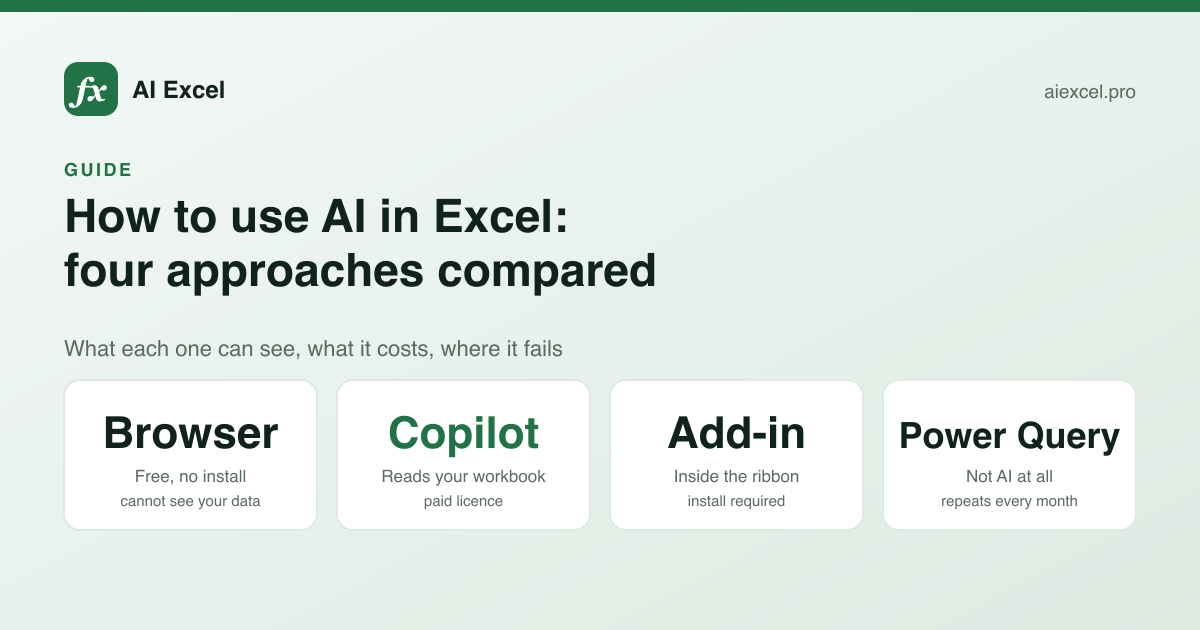
There are now four genuinely different ways to use AI in Excel, and they are not interchangeable. One writes formulas for you. One lives inside the ribbon and can see your workbook. One runs in a browser tab and sees nothing. One is not really AI at all, but solves the problem people usually mean when they ask for it.
Picking the wrong one is how people conclude that AI in Excel does not work. This is a guide to which is which, what each actually does to a spreadsheet, and where each falls over.
The four approaches, briefly
| Browser tool | Copilot | Add-in | Power Query | |
|---|---|---|---|---|
| Writes formulas from a description | Yes | Yes | Yes | — |
| Explains a formula you inherited | Yes | Yes | Yes | — |
| Can see your actual data | — | Yes | Yes | Yes |
| Writes VBA or scripts | Yes | Limited | Yes | — |
| Needs an install | — | — | Yes | — |
| Needs a paid licence | — | Yes | Usually | — |
| Works on a locked-down machine | Yes | If licensed | — | Yes |
| Repeatable without AI | — | — | — | Yes |
The row that decides most cases is can it see your data. Everything else follows from it. A tool that can see your workbook can answer questions about your numbers; a tool that cannot must be told what your columns are called. Neither is better — they are answers to different questions.
1. Browser tools: describe the result, get a formula
This is the category this site is in, along with GPTExcel, AI Excel Bot and the formula generator inside Better Analyst. You type a sentence, you get a formula, you paste it in.
The thing to understand is that the tool is reading your sentence, not your spreadsheet. It has no idea that your data starts on row 4, that your lookup table is on a sheet called Config, or that the column you call "amount" is actually headed "Net Value (USD)". Anything it needs to know has to be in the sentence.
That sounds like a limitation, and it is, but it is also why these tools are free and require nothing: there is no upload, no permission grant, and nothing of yours to store.
What a usable description looks like
Vague
sum the amounts by regionGets you =SUMIF(A:A,D1,B:B) with invented column letters you then have to remap.
Specific
Sum the 'Net Value' column (F) where 'Region' (C)
is West and 'Status' (H) is not Cancelled.
Data starts on row 4 of sheet Orders.
Gets you a formula with the right columns, the right sheet, and the exclusion handled.
Naming your columns is the single highest-leverage thing you can do.
Three habits cover most of it: name the columns, state the conditions including the negative ones, and say where the data starts if it is not A1. If your answer needs to work for rows you have not added yet, say that too — otherwise you will get a range that stops at today's last row.
Where it goes wrong
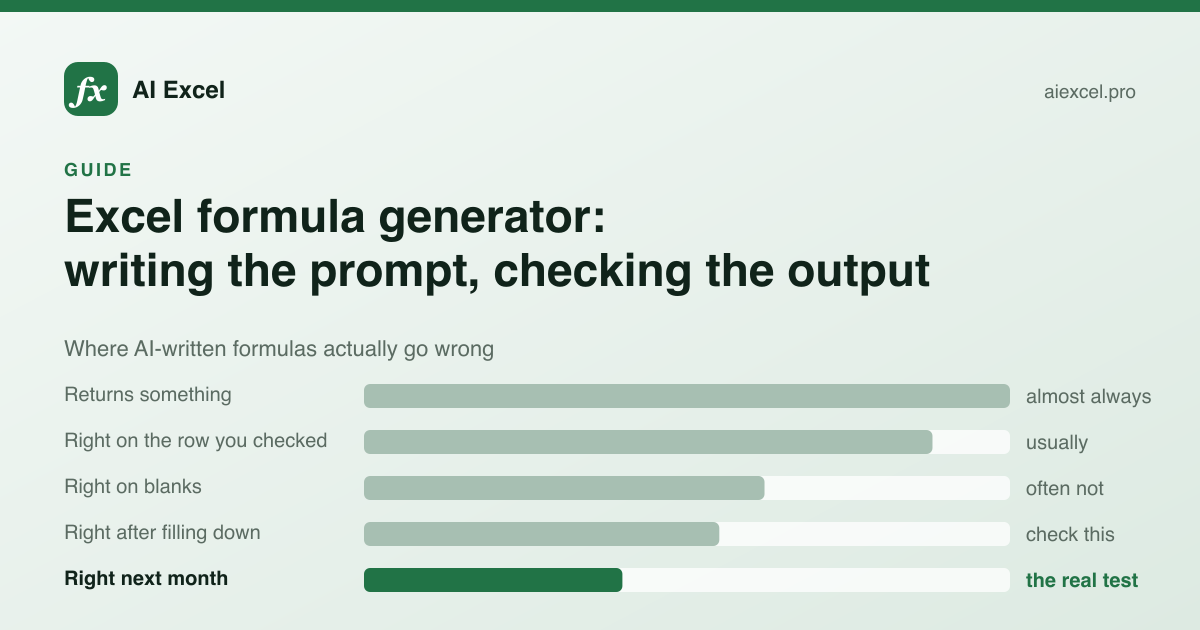
The failure mode is never gibberish. It is a plausible formula with one wrong argument: a col_index_num off by one, a range that should have been absolute, a criteria string missing its quotes. The formula looks right, returns a number, and the number is wrong.
This is why the check matters more than the generation. Paste the formula, then test it against one row where you already know the answer. That single step catches nearly everything, and it takes ten seconds.
2. Copilot: AI that can see the workbook
Microsoft 365 Copilot sits in the Excel ribbon and has access to the open workbook. That changes the shape of what you can ask. Instead of describing your columns, you ask "which regions grew more than 10% quarter on quarter" and it works from the actual data.
It is good at summarising, at surfacing patterns you did not ask about, and at adding formula columns where the intent is clear from the surrounding sheet. It is weaker at the thing browser tools are best at: producing one exact, gnarly, deeply nested formula on request. Asked for something specific and complex, it often restructures your approach instead of answering the question.
The practical constraints are licensing and data governance. It requires a paid Microsoft 365 licence on top of the base subscription, and in most organisations enabling it is an IT decision rather than a personal one. If you have it, use it for exploration. If you do not, a browser tool covers the formula-writing half.
3. Add-ins: the assistant inside the ribbon
Ajelix, and several others, ship an Excel add-in and a Google Sheets add-on. You get a sidebar in the spreadsheet itself, so there is no alt-tabbing and no copy-paste.
When it works, this is the most comfortable of the four. The catch is getting it installed. On a managed work machine, add-ins are frequently blocked by policy, and getting one approved is a conversation with IT rather than a click. It is also tied to your account, which makes it less useful in the very common case of helping a colleague at their desk.
If you own your machine and use spreadsheets daily, an add-in is worth the subscription. If either of those is false, it probably is not.
4. Power Query: not AI, usually the right answer
This one belongs in the list precisely because it is not AI. A large share of what people want AI in Excel for is repetitive data cleanup: split this column, trim these values, unpivot this table, do it again next month when the new export arrives.
Power Query does exactly that, deterministically, and records the steps so next month is one click. An AI tool will happily write you a formula for the same job, and you will run it again by hand every month, and one month it will silently miss the rows that arrived in a slightly different format.
The rule of thumb: if you will do it more than twice, it is a Power Query job. If it is a one-off, a formula is faster to produce and easier to throw away.
Choosing between them
What are you actually trying to do?
I need one formula
Browser tool
Fastest path, nothing to install or sign into. Describe the result and check it against a known row.
I inherited a broken sheet
Formula explainer
Reformat first so the nesting is visible, then work outward from the innermost call.
I have questions about my data
Copilot
This is the one category that can actually read your workbook. Nothing else on this list can.
Same cleanup every month
Power Query
Not AI, and that is the point — it records the steps and replays them deterministically.
I live in spreadsheets all day
Add-in
Worth the subscription and the install if you own the machine and use it daily.
I need to automate Excel itself
VBA or Office Scripts
Formulas calculate; macros act. Generate the macro, then read it before running it.
A workflow that holds up
- 1
Write the description before you open anything
Name the columns, state the conditions, mention where the data starts. If you cannot write the sentence, you do not yet know what you want the cell to contain — and no tool fixes that.
- 2
Set the dialect before you generate
Excel and Google Sheets diverge on more than syntax. QUERY has no Excel equivalent; LET has no Sheets equivalent. Translating afterwards is harder than asking correctly.
- 3
Read the caveats, not just the formula
A good tool tells you what will break it. Locale separators, absolute versus relative references, and ranges that stop short of next month's rows account for most real failures.
- 4
Verify against one known row
Pick a row where you already know the answer and check the formula produces it. This is the step people skip and the step that catches the off-by-one.
- 5
Check the empty case
What does the formula do when the cell is blank, or the lookup misses? #N/A propagating through a summary column is how a wrong total reaches a report.
- 6
Decide whether it should be a helper column
If the answer came back four functions deep, consider splitting it. Nested formulas are harder to verify and much harder for whoever inherits the sheet.
What not to paste into any of them
Every tool in categories 1 to 3 sends your text to a model running on someone else's hardware. That is true of the free ones and the paid ones equally.
Describing your columns is fine. Pasting the rows is rarely necessary and occasionally a disclosure you are not permitted to make — customer records, salary data, anything under an NDA. If you need AI over data that genuinely cannot leave the building, that is a Copilot-with-tenant- controls conversation, or Power Query and no AI at all.
Where to start
If you are not sure which category you need, start with the cheapest test. Open a browser tool, describe your problem, and see whether a formula solves it. That costs nothing and takes a minute, and it tells you whether you have a formula problem, a data problem, or an automation problem — which is the actual question underneath "how do I use AI in Excel".