VLOOKUP vs XLOOKUP vs INDEX MATCH: Which to Use
VLOOKUP vs XLOOKUP vs INDEX MATCH compared on Excel version support, looking left, and what happens to each one when somebody inserts a column.
Three functions do the same job in Excel, and the internet will tell you confidently that one of them is correct. It depends — mostly on which version of Excel the file will be opened in, and on what happens to the sheet after you leave.
Here is the honest version: XLOOKUP is the best of the three and you often cannot use it. INDEX/MATCH is the one that works everywhere and survives column changes. VLOOKUP is the one everybody already knows, which is a real advantage in a shared workbook and a real liability in a growing one.
The same lookup, written three ways
Say you have a product table with SKU in column A, description in B and unit price in C, and you want the price for the SKU in F2.
VLOOKUP:     =VLOOKUP(F2, A:C, 3, FALSE)
XLOOKUP:     =XLOOKUP(F2, A:A, C:C, "not found")
INDEX/MATCH: =INDEX(C:C, MATCH(F2, A:A, 0))
They return the same value today. What separates them is what happens when somebody inserts a column, when the SKU is missing, and when the value you are looking up sits to the right of the value you want back.
Where they actually differ
| XLOOKUP | INDEX/MATCH | VLOOKUP | |
|---|---|---|---|
| Needs Excel 365 / 2021 | Yes | — | — |
| Works in Excel 2016 / 2019 | — | Yes | Yes |
| Can look left | Yes | Yes | — |
| Survives an inserted column | Yes | Yes | — |
| Built-in 'not found' value | Yes | — | — |
| Defaults to exact match | Yes | — | — |
| Reverse search (last match) | Yes | Awkward | — |
| Returns a whole row or block | Yes | Yes | — |
| Everyone on the team knows it | Not yet | Some | Yes |
The two problems with VLOOKUP
It counts columns, and columns move
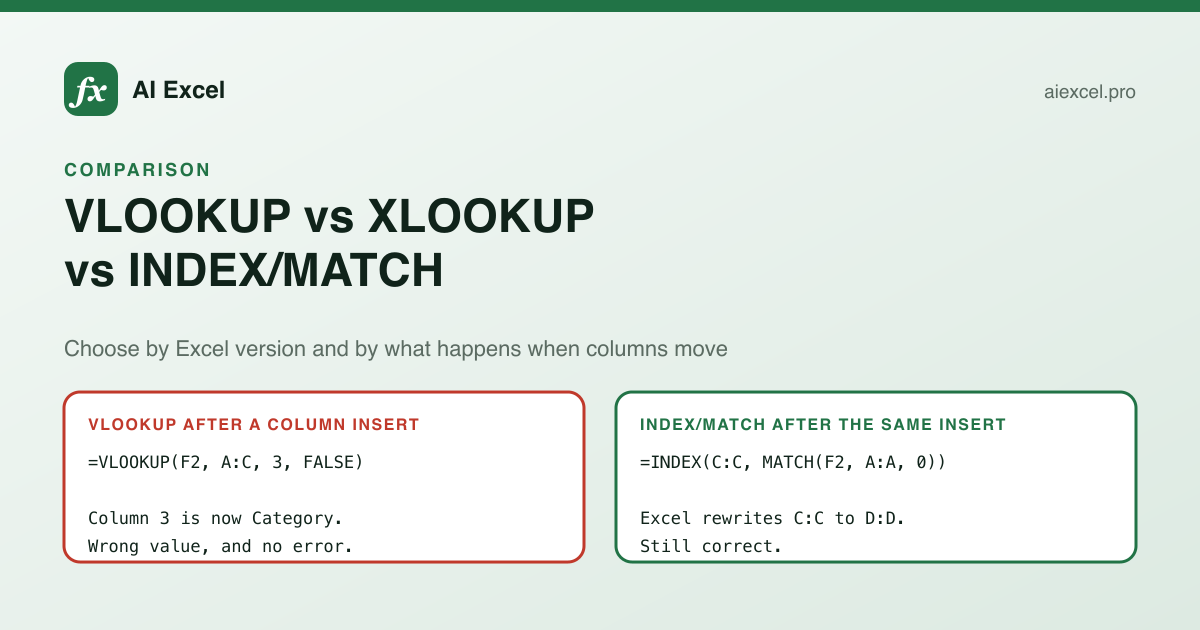
col_index_num is a number. It means "the third column of the range I gave you", not "the unit price column". Insert a column anywhere inside that range and the third column is now something else. The formula does not break — it returns the wrong value, silently, which is considerably worse.
VLOOKUP after an insert
=VLOOKUP(F2, A:C, 3, FALSE)

// Someone adds a "Category" column at B.
// Column 3 is now Category, not Price.
// Returns "Stationery". No error.
Wrong answer, no warning. This is the failure people do not catch.
INDEX/MATCH after an insert
=INDEX(C:C, MATCH(F2, A:A, 0))

// Excel rewrites C:C to D:D automatically.
// Still points at Price.
// Returns 19.99. Correct.
References move with the columns, because they are references, not counts.
This single behaviour is the strongest argument against VLOOKUP in any sheet that will be edited.
It cannot look left
VLOOKUP searches the first column of your range and returns something to the right of it. If the value you have is in column C and the value you want is in column A, VLOOKUP cannot do it, and every workaround involves rearranging your data or nesting CHOOSE in a way nobody will understand later. Both alternatives handle it without comment.
And a third, smaller one
The fourth argument defaults to TRUE, meaning approximate match, on unsorted data that will quietly return nonsense. Forgetting FALSE is one of the most common spreadsheet bugs there is. XLOOKUP defaults to exact.
What XLOOKUP adds
XLOOKUP takes the lookup array and the return array as two separate arguments. That removes the column-counting problem, the cannot-look- left problem and the approximate-match-by-default problem in one go.
It also takes a fourth argument for what to return when nothing matches, which replaces the usual IFERROR wrapper. That matters for correctness, not just brevity: IFERROR swallows every error, so a #REF! from a genuinely broken reference gets hidden behind the same friendly message as a legitimate miss.
=IFERROR(VLOOKUP(F2, A:C, 3, FALSE), "not found")
  ↑ also hides #REF!, #VALUE! and #NAME?

=XLOOKUP(F2, A:A, C:C, "not found")
  ↑ only handles the no-match case; real errors still surface
The fifth and sixth arguments cover wildcard matching, next-larger and next-smaller matching, and searching from the bottom up — which is the clean way to get the most recent record for an ID rather than the first one.
The catch is availability. XLOOKUP needs Microsoft 365 or Excel 2021. A workbook using it opens as #NAME? on Excel 2019, with no hint as to why. If you do not control every machine the file will land on, that is disqualifying.
Choosing
Which lookup should this formula use?
Everyone is on Microsoft 365
XLOOKUP
Safer defaults, handles missing values natively, and reads more clearly than the alternatives.
The file goes to Excel 2019 or older
INDEX/MATCH
Works everywhere, survives inserted columns, and can look in either direction.
You need to match on two columns
INDEX/MATCH
MATCH with a multiplied boolean array handles it; VLOOKUP needs a helper column.
You want the most recent record
XLOOKUP
search_mode -1 searches bottom-up. Doing this without it means MAX over a filtered array.
Returning several columns at once
XLOOKUP
Give it a multi-column return array and it spills. VLOOKUP needs one formula per column.
Handing it to a VLOOKUP-only team
VLOOKUP
A formula nobody can maintain is its own kind of bug. Lock the range with absolute references.
If you are keeping VLOOKUP
- 1
Always pass FALSE as the fourth argument
Approximate match on unsorted data returns plausible wrong answers rather than errors. There is almost never a reason to omit it.
- 2
Use a table, not a range
Convert the lookup data to an Excel Table (Ctrl+T) and reference it by name. Structured references survive inserts in a way A:C does not.
- 3
Replace the hard-coded number with MATCH
=VLOOKUP(F2, Products, MATCH("Unit Price", Products[#Headers], 0), FALSE) counts the column by its header instead of by position. Verbose, but it stops moving.
- 4
Lock the range with absolute references
$A$2:$C$500 rather than A2:C500, or the range shifts as you fill the formula down and the last rows look past the end of the table.
- 5
Handle the miss deliberately
Wrap in IFNA rather than IFERROR. IFNA catches only #N/A, so a genuinely broken reference still shows as an error instead of hiding behind a blank.
The performance question
You will see claims that INDEX/MATCH is faster than VLOOKUP. On modern Excel with normal data volumes, the difference is not something you can perceive, and it is not a good reason to choose either one.
What does hurt is passing whole-column references — A:A rather than A2:A5000 — inside thousands of formulas, and doing lookups against another workbook that is closed. Both of those cost far more than the choice of function. If a sheet is slow, look there first.
Reference pages
Full syntax, worked examples and the specific error modes for each: VLOOKUP, XLOOKUP, INDEX and MATCH. If you would rather describe the problem than pick the function, the formula generator will choose for you and say why.